Player
How the media player works
Our player comes from Soundslice — a practice partner that lets you slow down, loop and transpose any passage. Below you'll see what each feature does, with a short animation. At the bottom you can try it yourself on a real player.
01 — Basics
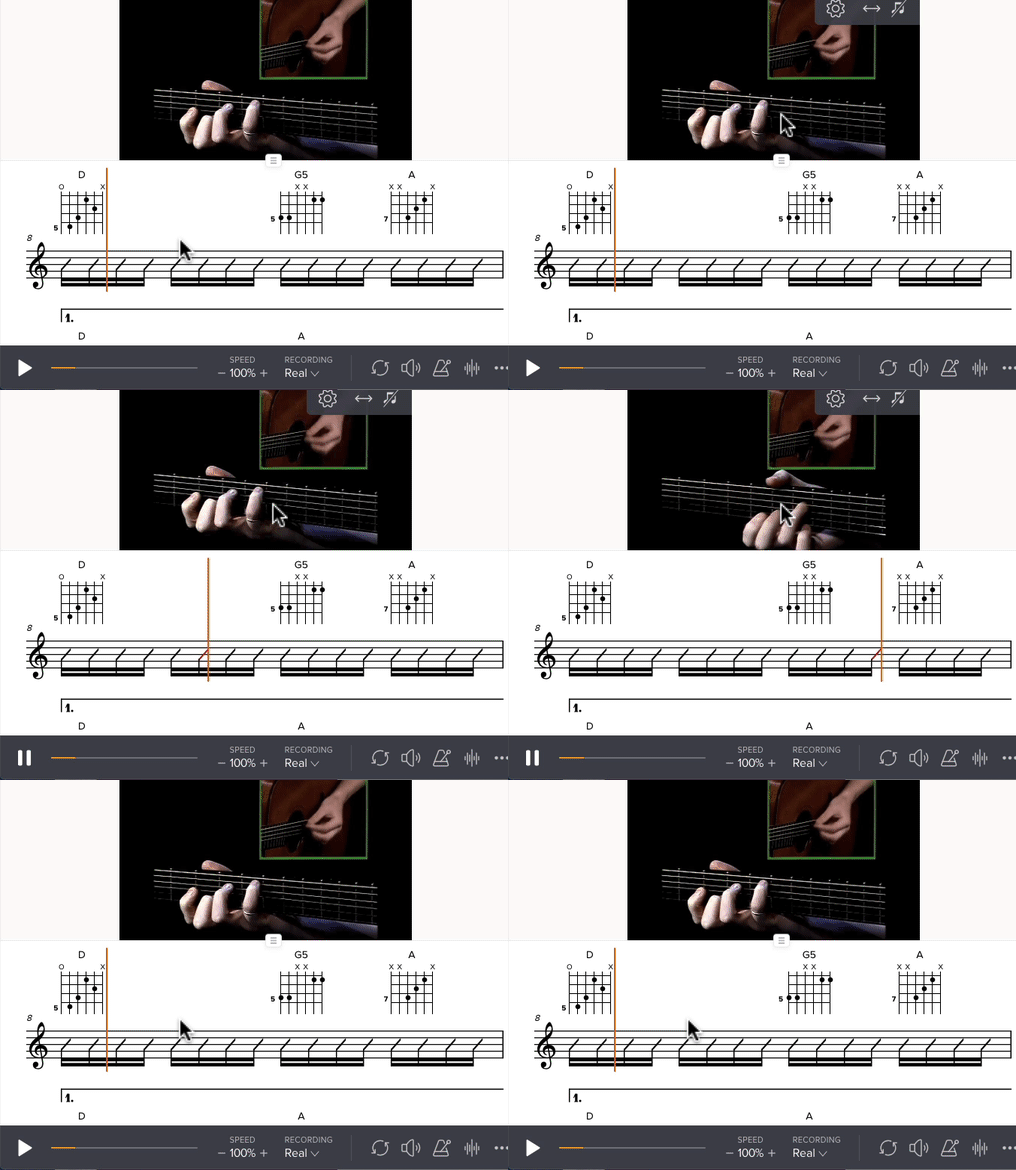
Play & pause
Click the play button at the bottom left of the player to start. Click again — or press the spacebar — to pause. The playhead moves along with the notes so you always see where you are.
- Spacebar = play / pause (on desktop, with the player in focus).
- Want to start over? Click a note or line to move the playhead there.
- Your first click on the player below loads it in. After that it plays right away.
02 — Slow down
Play at a lower tempo
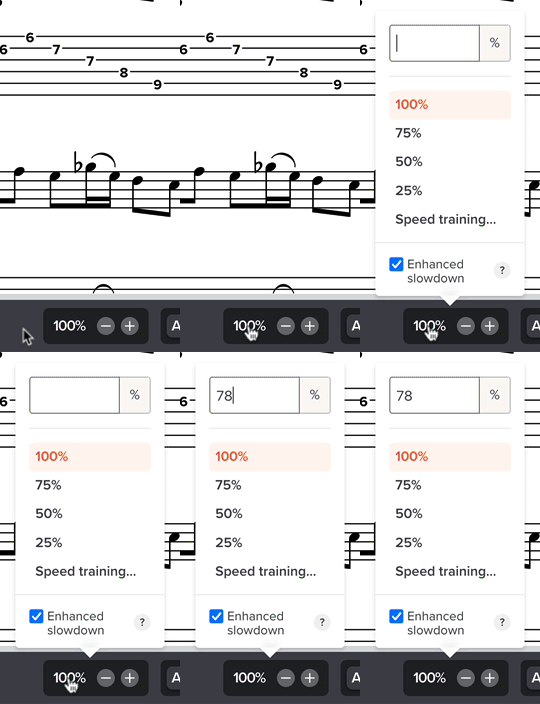
The most important practice trick: slow the piece down until you can play it flawlessly, then build back up in small steps. The pitch doesn't change — you hear the same notes, just slower.
- Click the minus/plus buttons at the bottom to slow down or speed up in steps of 10%.
- Click the percentage itself to type an exact number (e.g. 65%).
- Start at 50%. Play it 3× flawlessly. Then +10%. Repeat up to 100%.
- For video slices 25% is the minimum; for audio you can go even lower.
03 — Repeat
Loop to drill a passage
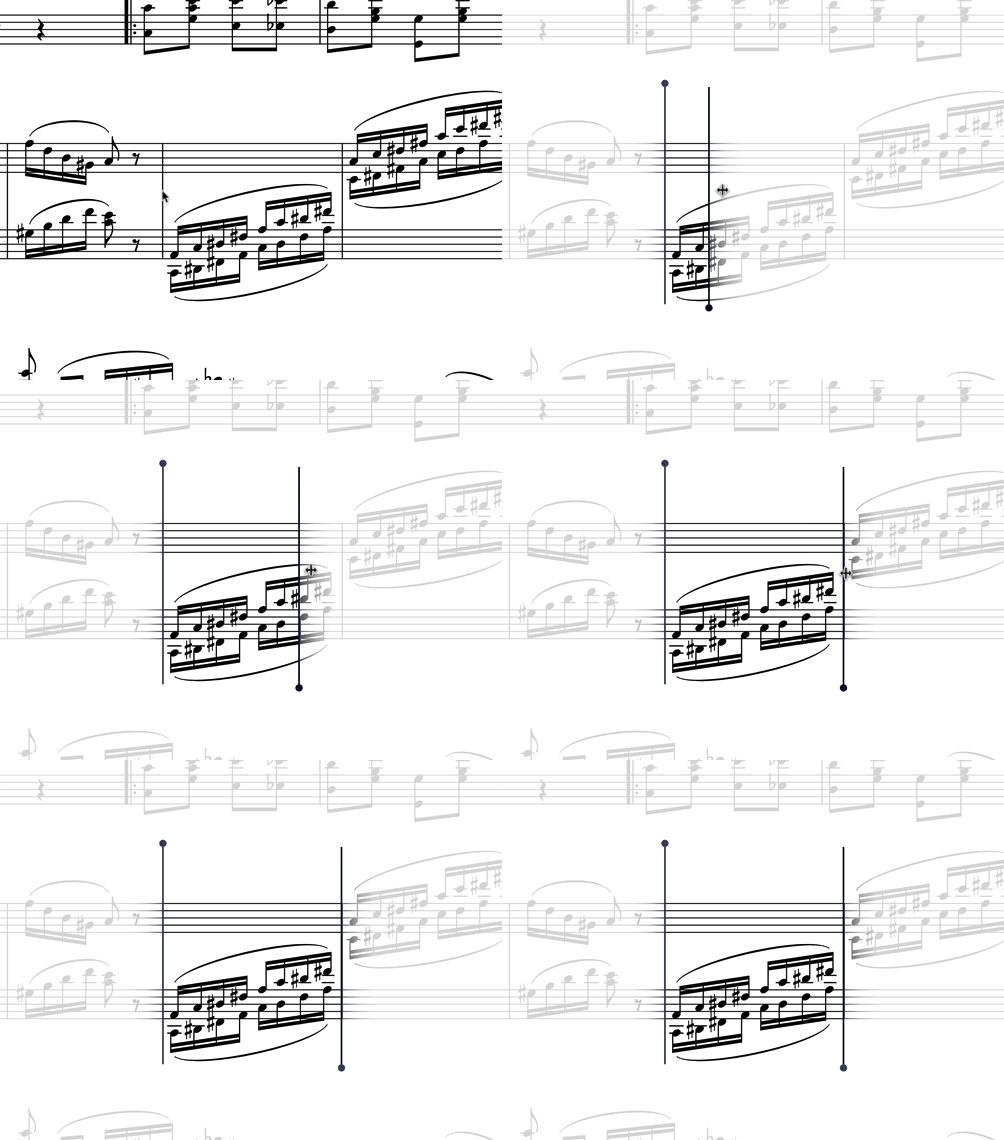
You won't master a tricky bit by playing the whole piece from the start every time. Loop it — let the same 4 bars repeat endlessly until your fingers know it. This is what truly speeds up practice.
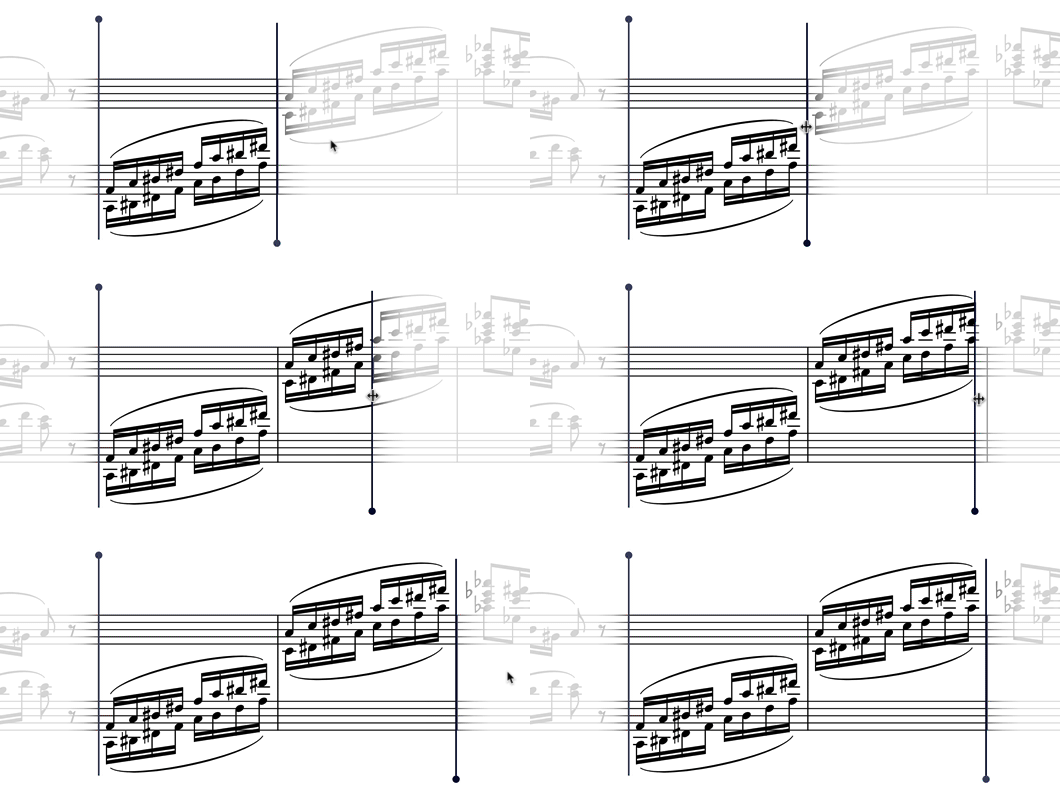
- On desktop: click and drag over the notes where you want a loop. The selection snaps to bars.
- On your phone: tap the loop icon in the bar, then drag the start and end handles.
- Adjust the loop by dragging its edges. Tap in the notation outside the loop to clear it.
- Combine it with the tempo from step 2: loop at 50%, then 70%, then 100%.
04 — Pitch
Transpose & capo
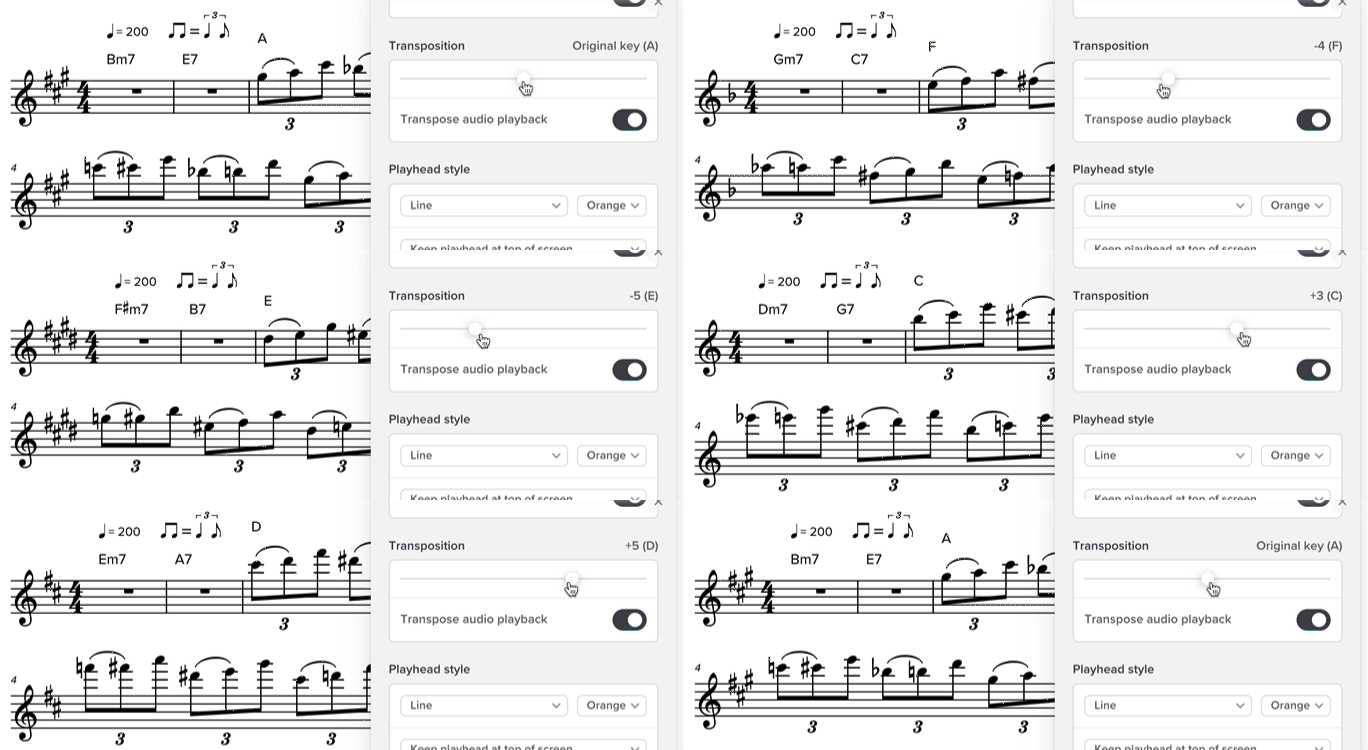
Want the piece in a different key? For example because your voice can't reach it, or because you want to play along with someone tuned differently? Transposing shifts everything over without you having to relearn anything.
- Open the settings menu in the player and choose 'Transpose'. Slide up or down in half steps.
- Capo mode shows 'play as capo X' + the old chord names — handy if you'd rather play with a capo.
- Songs with a capo (like 'Wonderwall' capo 2) are already transposed in the player. Play-as-shown works without a capo, or capo 2 for the real feel.
05 — Display
Full screen
Besides our own full-screen button at the top right of every player, Soundslice also has its own fullscreen mode in the bar. Both work — pick whatever feels best. On your phone: turn it sideways for the most reading space.
- Our button at the top right works everywhere — even when the player sits inside an article.
- Soundslice bar: tap the expand icon at the bottom right of the player.
- Esc exits fullscreen on desktop.

06 — Concentration
Focus mode
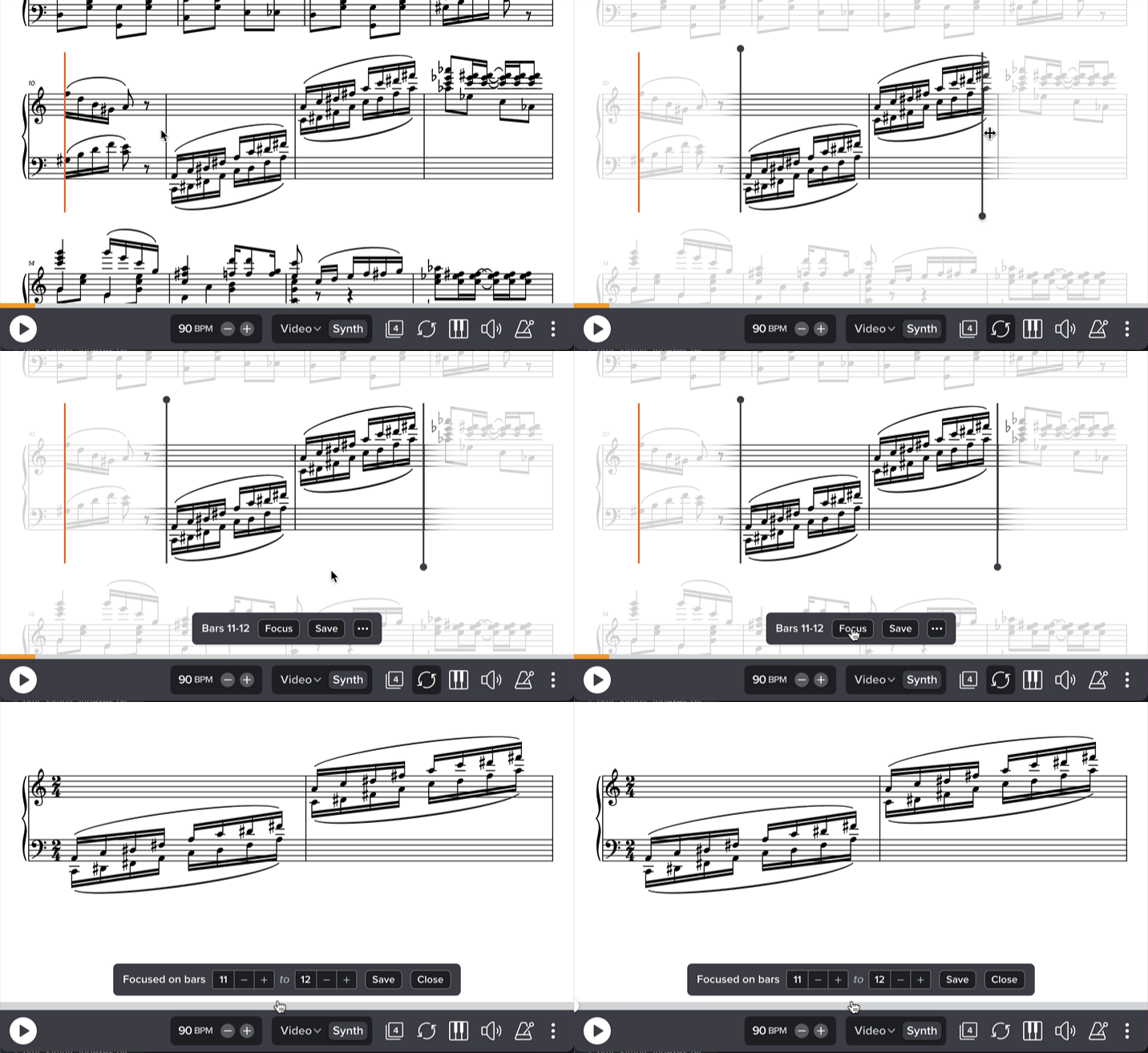
Focus mode strips away everything except the notes you're playing right now. No menus, no buttons, no distractions — just the music. Turn it on via the settings menu in the player.
- Press Esc to leave it, or click the X at the top right.
- Combine it with looping for zen-mode practice.
- Works on phone too — especially nice in landscape mode.
07 — Work faster
Keyboard shortcuts (desktop)
First click once in the player so it gets focus. After that these keys work.
| Spatie | Play / pause |
| ← → | Jump one bar back / forward |
| ↑ ↓ | Volume up / down |
| L | Loop on / off within the current selection |
| F | Full screen |
| M | Mute / unmute |
| Esc | Exit full screen or focus mode |
08 — On the go
On your phone
The player is built mobile-first — held upright on your phone you get a large, readable view (3:4 ratio).
Tip: turn it sideways and use the fullscreen button. The supported gestures are the same as on desktop, just with tap and drag.
iOS: due to Safari restrictions you have to tap first to load the player. After that everything runs by itself.
09 — Try it yourself
Play with the real player
Here's a working player with "Roller Coaster" by Danny Vera. Try everything you've seen above: slowing down, looping, transposing, focus mode. Your first click loads it in.
Demo: Roller Coaster — Danny Vera. Free embed, doesn't count toward your profile.
FAQ
Frequently asked questions
- Why do I have to click to start the player?
- To load your page quickly, we first place a lightweight placeholder. Only when you click does the real Soundslice player load in. After that you can simply play, slow down and loop.
- Does it work without internet?
- No — Soundslice streams both the visuals and the audio. You need an active connection. On a slightly slower connection you can lower the quality in the settings menu.
- Are my settings remembered?
- The player remembers some things (like tempo) per browser. For cross-device storage you need your own Soundslice account — for our learning environment that's not necessary.
- I can't find a button.
- The official Soundslice help has a lot of detail per feature. Jump to soundslice.com/help for anything that doesn't fit here.
Full player documentation is available at soundslice.com/help.
Ready to practice?
Grab a song and apply it right away — slow down, loop and play along until it sticks.

